You received a .md file from ChatGPT, a README from GitHub, or notes from a teammate — and you do not want to upload it to a random “online converter.” Fair. For OS-by-OS steps, see how to open an MD file (also phrased as how to open a markdown file). This guide explains what “open Markdown online” usually implies, how to open the file entirely in your browser, how local tools compare to upload converters, what PDF/Word export actually does on openmdfile.com, and when a desktop editor is still the better choice.
What opening Markdown online usually means
Search for “open md file online” and you will find two very different products that look similar on the landing page:
- Upload converters — you send the file (or paste into a form that posts to a server). The service stores or processes the text on their machines, then returns a preview or a download. Convenient, but your document contents leave your device. That may be fine for a public README; it is a poor default for contracts, customer data, or internal docs.
- Browser-local viewers — the site ships JavaScript that runs in your tab. Choosing a file uses the browser File API; the bytes are read into memory on your device and rendered there. A well-built local viewer never needs your Markdown on its server to show a preview.
The marketing language overlaps (“free,” “online,” “no install”), so the honest question is not “is it a website?” but “does my file leave my computer?” If the answer is unclear in the privacy policy, assume upload until proven otherwise.
Open without uploading — browser-local steps
On openmdfile.com the flow is intentionally short:
- Open the homepage (or this page’s sibling tools such as MD Viewer / Markdown Reader).
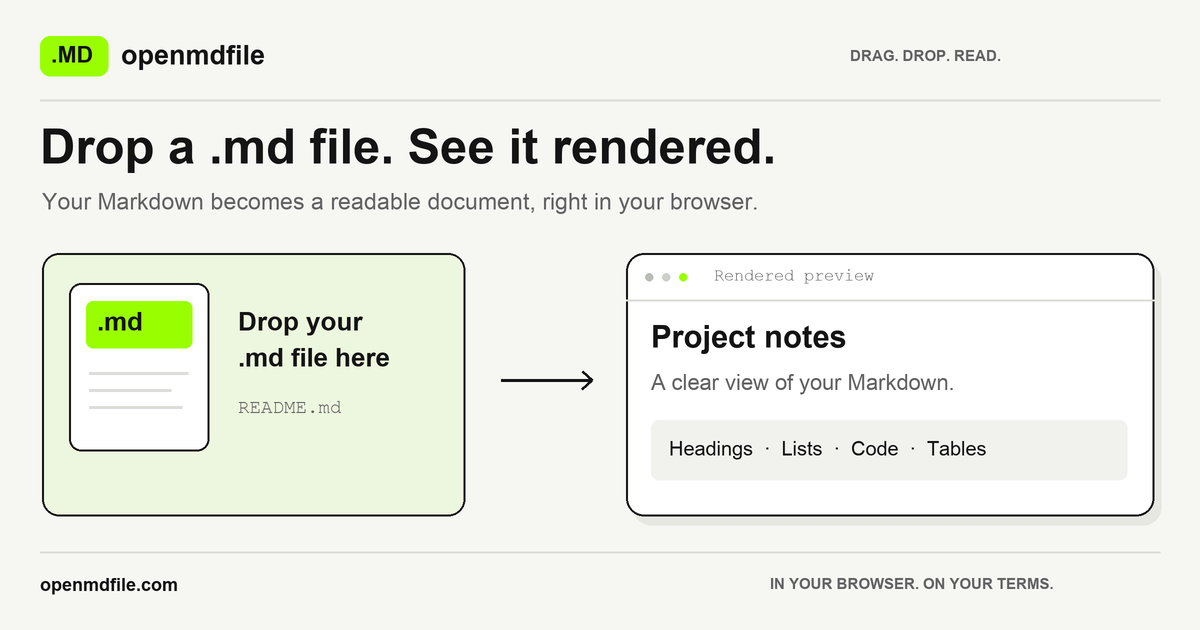
- Drop a
.md,.markdown, or.txtfile into the drop zone, or click Choose file. You can also paste Markdown text or open a file from a URL you control. - The page renders GitHub Flavored Markdown (GFM) as a readable document: headings, tables, task lists, fenced code with highlighting, and common extras such as diagrams and math when those libraries are loaded.
- Read it. If you need a shareable artifact, use the on-page PDF or Word export — still generated in the browser (see below). Soft limit: files up to 10 MB.
Nothing in that path requires an account. After the page and its libraries have loaded from the CDN, preview does not depend on re-uploading your document. “Open from URL” is the one exception to “nothing leaves”: your browser fetches that URL directly (for example a raw GitHub file); the request goes to the host you typed, not as an upload of a local secret to us.
Local vs upload converters
| Aspect | Browser-local (e.g. openmdfile) | Typical upload converter |
|---|---|---|
| Where the .md is processed | Your browser tab (File API + JS) | Provider’s servers |
| Account required | No | Often optional, sometimes required for history |
| Works for sensitive drafts | Designed for that default | Only if you trust the operator and retention policy |
| Offline after first load | Preview can keep working for an already-loaded page | Usually needs connectivity to their API |
| Server-side copy of your text | Not created for preview/export | Often yes, at least transiently |
| Best for | Reading, quick PDF/Word, privacy-sensitive files | Heavy batch jobs, server-only formats, team pipelines |
Neither model is “always wrong.” Upload services can be excellent for automated pipelines. For “I just need to read this one file,” local rendering removes an unnecessary trust decision.
Export PDF / Word privacy — what is truly local
Preview on openmdfile is browser-local. Export deserves the same honesty:
- PDF — built with
html2pdf.js/ jsPDF in your tab, then downloaded as a file. Your Markdown is not posted to openmdfile servers to create the PDF. - Word — the page builds an HTML document styled for Microsoft Word and triggers a local
.docdownload (a Word-readable HTML package). Again, generation happens on-device; we do not receive the document to convert it. - Copy rich text — stays on your clipboard for pasting into Docs, Word, or email.
What does leave your machine in normal use of any modern static site:
- Requests for the page HTML and open-source libraries from public CDNs (those hosts see an IP and a URL path, not your file contents).
- If you use Open from URL, your browser contacts that remote host.
So: your .md contents are not uploaded for preview or for PDF/Word export. We do not claim zero network activity (that would be false for any site that loads scripts). We claim the document itself is not sent to us. If a future feature ever needed a server round-trip for export, it would have to be labeled clearly; today’s PDF/Word path does not.
Same privacy posture as other CCC Studio browser-local tools — for example the pdf-to-markdown family — where conversion stays on-device rather than treating your files as upload fodder.
When to use a desktop editor
A browser viewer is ideal for opening and reading. Prefer a desktop editor when you need:
- Long editing sessions with git integration, multi-file projects, or extensions (VS Code, Obsidian, Typora, and similar).
- Guaranteed offline-first workflows without depending on CDN availability for first load.
- Custom render pipelines (org-specific Markdown flavors, proprietary plugins, or CI that already builds docs).
- Very large files beyond the soft 10 MB browser limit, or binary-adjacent notebooks that are not plain Markdown.
For “double-clicked a .md and Windows/macOS shrugged,” the browser path is usually faster than installing an editor for a one-off read. For daily writing, install the editor.
Ready to try it? Open your file on the openmdfile homepage — drop, preview, optional PDF/Word. Need HTML for the web instead of a reading view? That is what sister tool mdtohtml.app is for (convert/publish Markdown as HTML), not a substitute for private local preview here.